> ## Documentation Index
> Fetch the complete documentation index at: https://docs-dev.byterover.dev/llms.txt
> Use this file to discover all available pages before exploring further.
# Autonomous Local Agents
> Run your OpenClaw/Hermes agent and ByteRover memory system entirely on local models using LM Studio - no cloud API keys required.
This guide walks through running both OpenClaw and ByteRover CLI on local LLMs using [LM Studio](https://lmstudio.ai/).
## Tested Configuration
| Component | Version / Details |
| ------------- | -------------------- |
| Machine | Mac M4 Pro, RAM 24GB |
| LM Studio | 0.4.9 |
| OpenClaw | 2026.4.12 |
| ByteRover CLI | 3.3.0 |
This is an experimental setup. ByteRover and autonomous agents can run with OpenClaw on a Apple RAM 24GB machine, but for production usage we recommend at least an **Apple M4 with RAM 48GB**.
## Step 1 — Download the Models
Search for and download both GGUF files directly from LM Studio's **Discover** tab.
Search for `unsloth/gemma-4-E4B-it-GGUF` and download `gemma-4-E4B-it-UD-Q4_K_XL.gguf`.
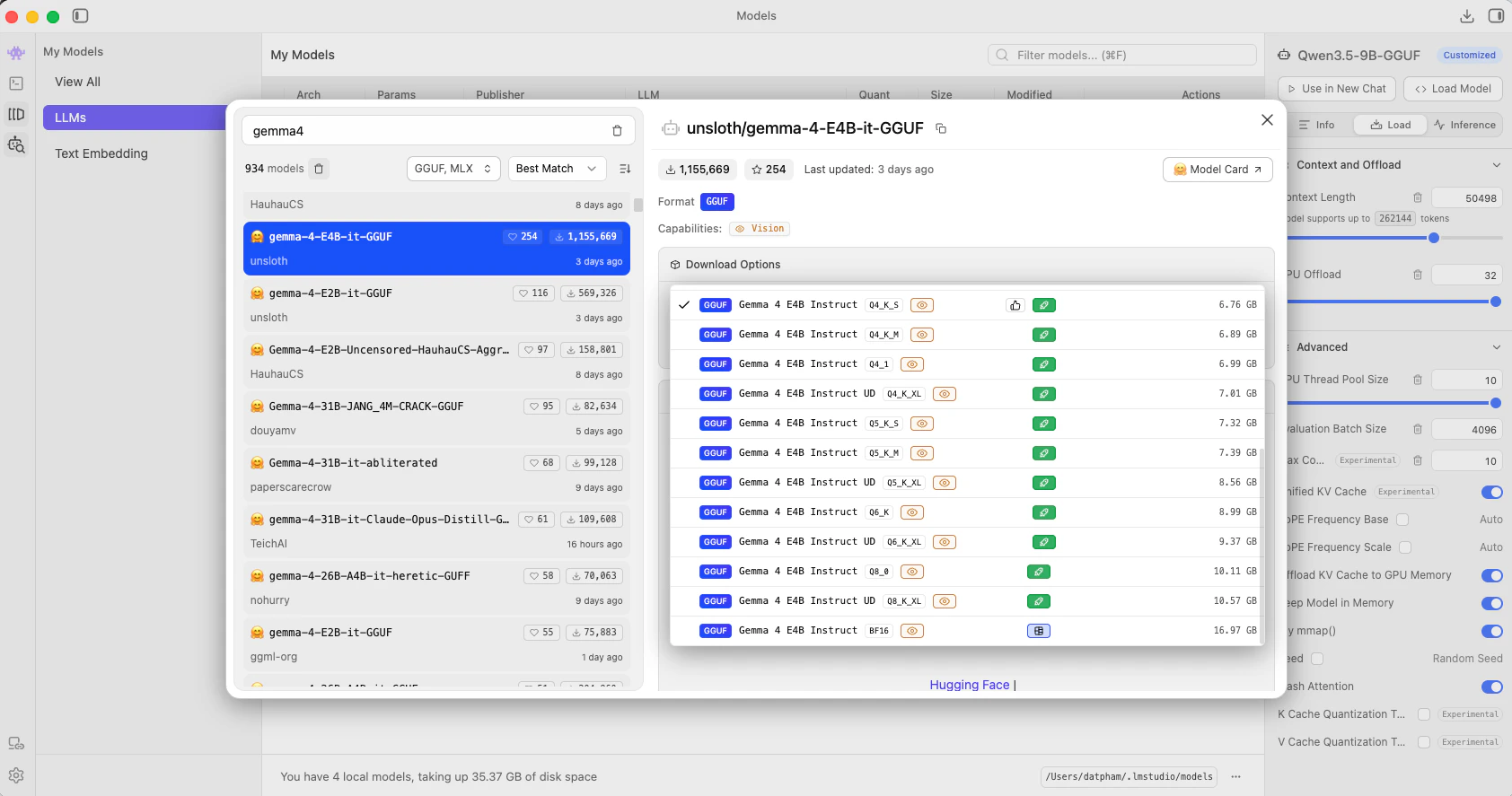 Search for `unsloth/Qwen3.5-9B-GGUF` and download `Qwen3.5-9B-Q4_K_S.gguf`.
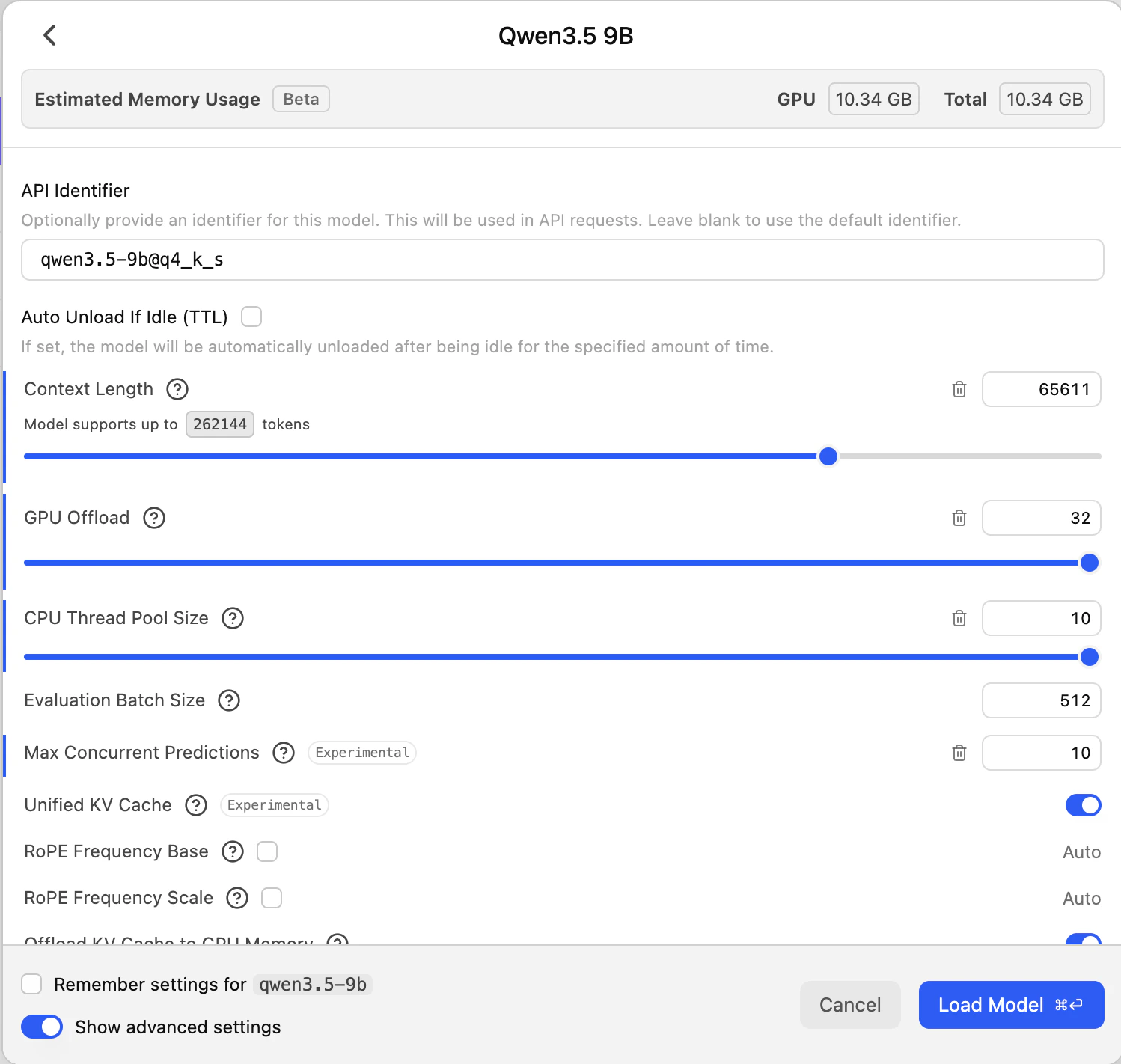
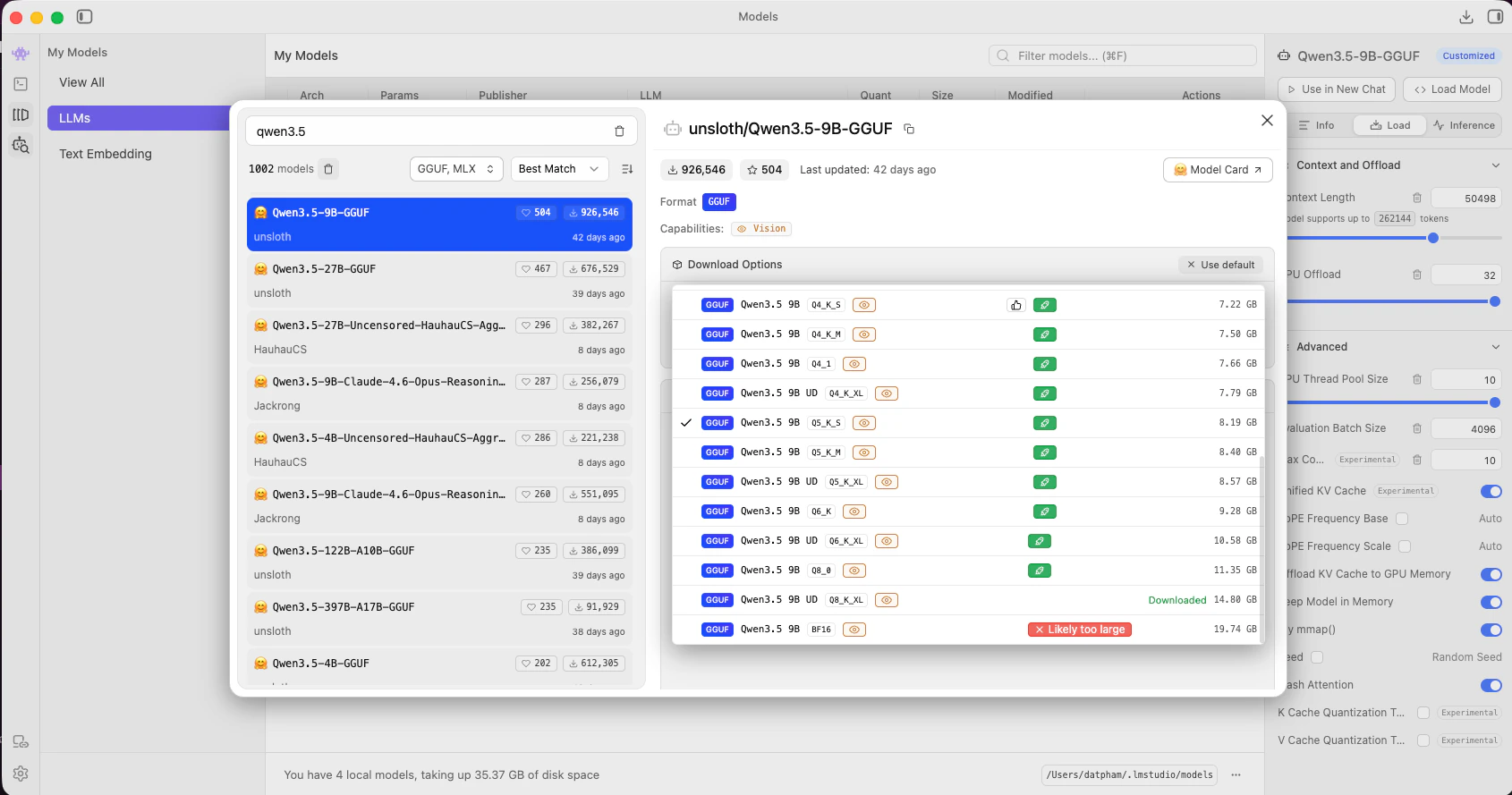 On a 24 GB machine, both models fit in memory simultaneously. Gemma 4 E4B at Q4 uses \~8.7 GB and Qwen3.5-9B at Q4 uses \~10.5 GB.
## Step 2 — Load Both Models in LM Studio
LM Studio serves all loaded models from a single endpoint at `http://localhost:1234/v1`. Load both models before starting the server.
Go to the **Models** tab. You should see both downloaded models listed.
On a 24 GB machine, both models fit in memory simultaneously. Gemma 4 E4B at Q4 uses \~8.7 GB and Qwen3.5-9B at Q4 uses \~10.5 GB.
## Step 2 — Load Both Models in LM Studio
LM Studio serves all loaded models from a single endpoint at `http://localhost:1234/v1`. Load both models before starting the server.
Go to the **Models** tab. You should see both downloaded models listed.
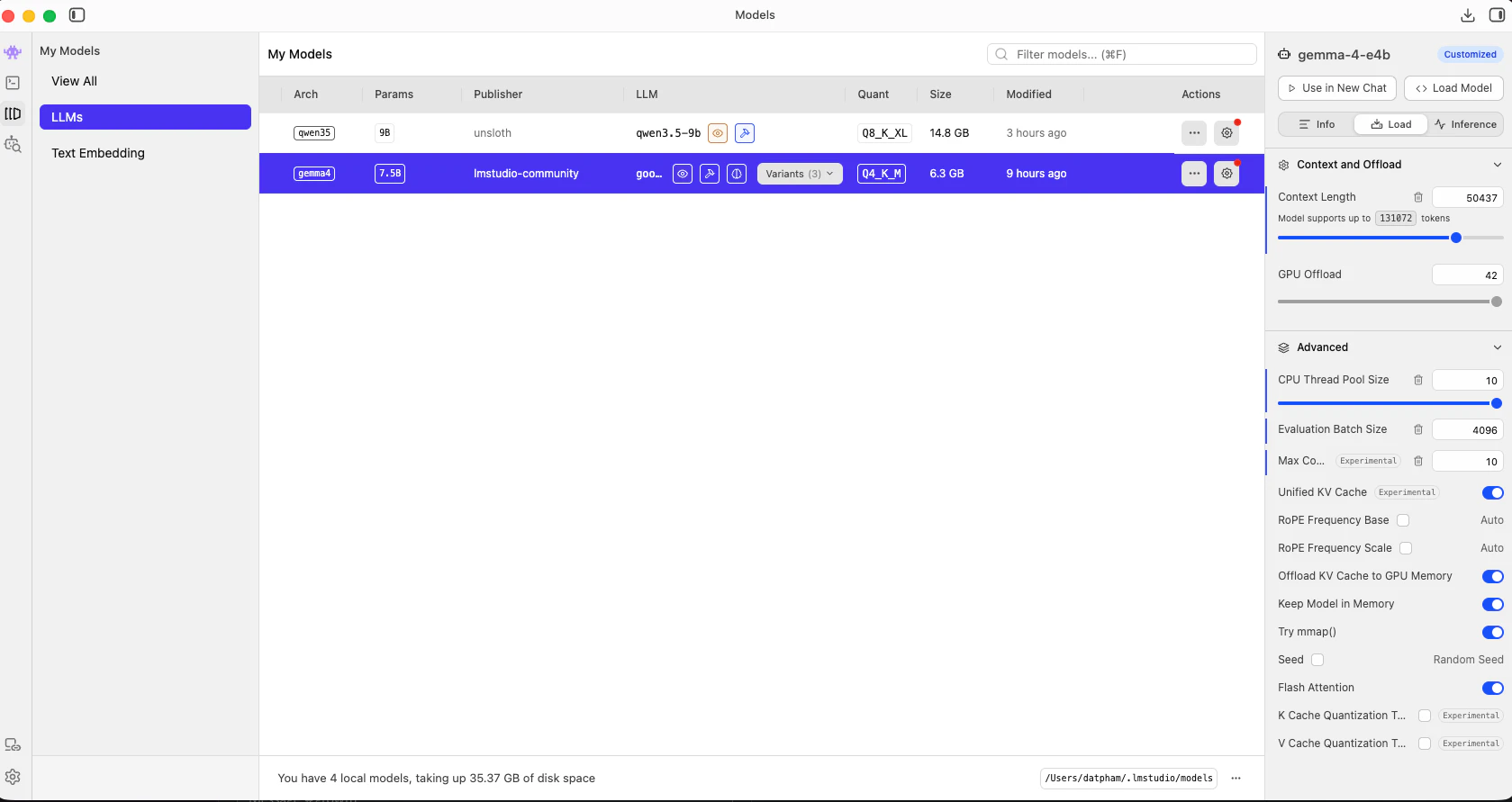 Click on `gemma-4-E4B-it-UD-Q4_K_XL.gguf` and click **Load**. Note the **API Identifier** — LM Studio assigns it `google/gemma-4-e4b`. This is the model ID you will use in OpenClaw's config.
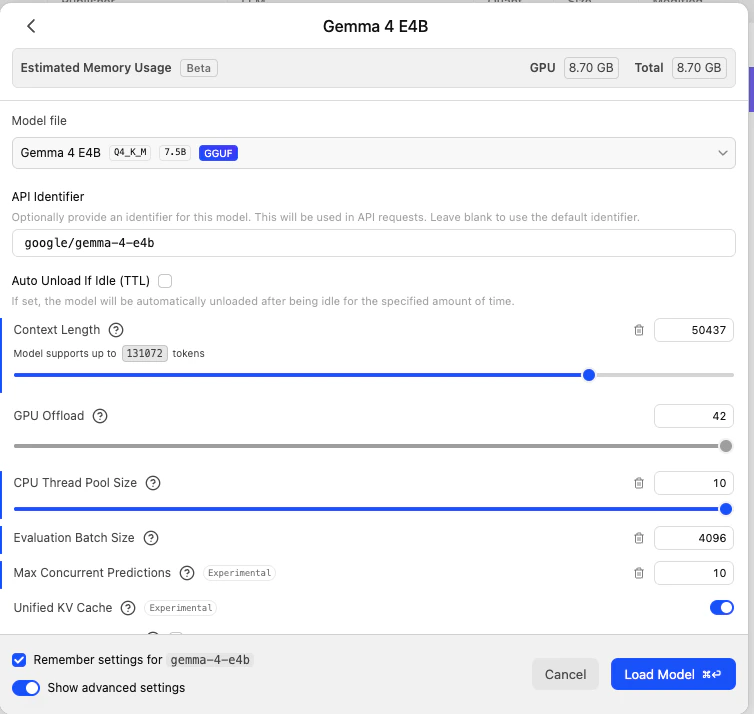 Click on `Qwen3.5-9B-Q4_K_S.gguf.gguf` and click **Load**. The API Identifier will be `qwen3.5-9b`.
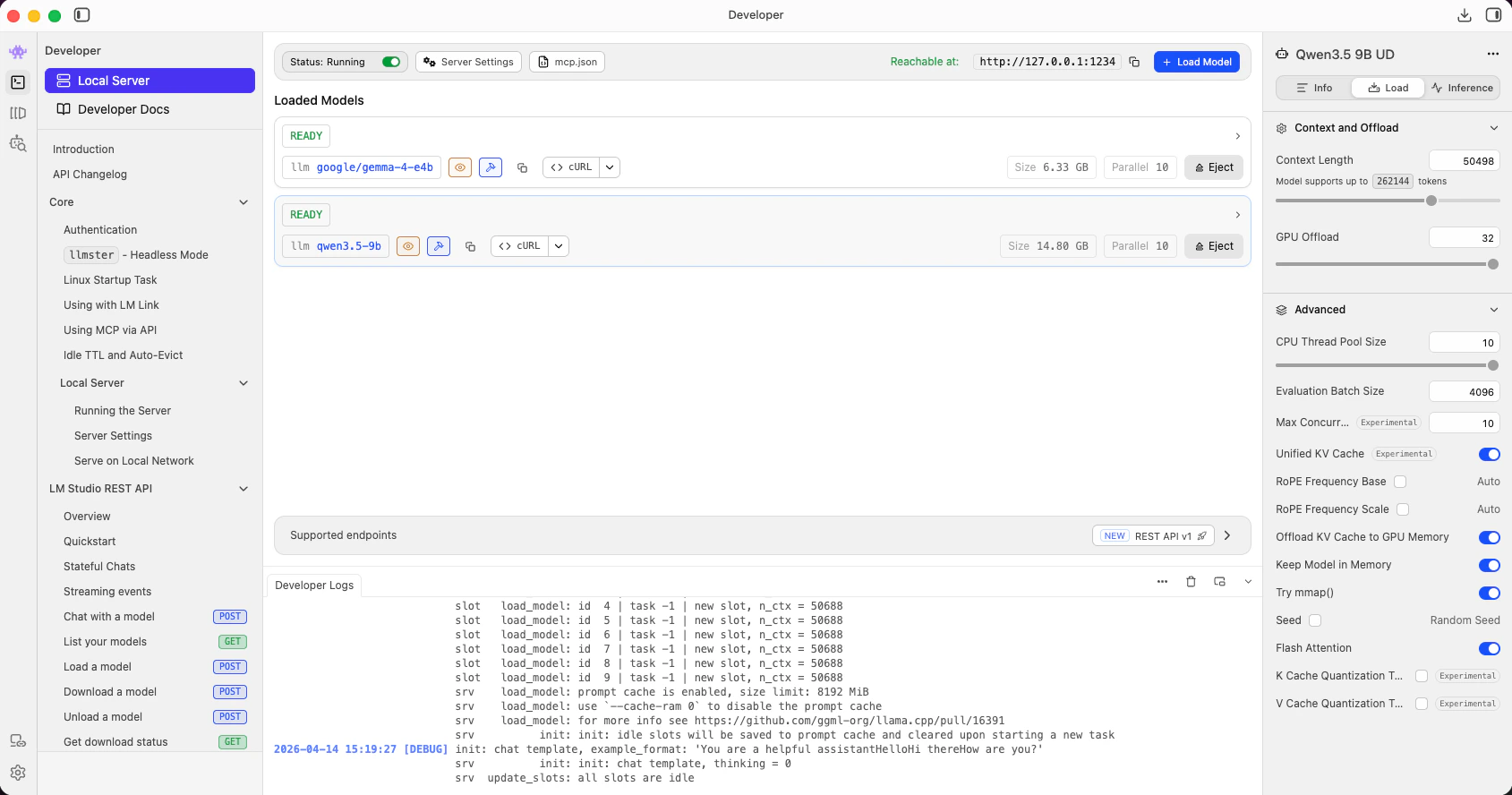
 Open the **Developer** tab. Both models should show **READY** status, reachable at `http://127.0.0.1:1234`.
 Confirm with:
```bash theme={null}
curl http://localhost:1234/v1/models
```
The response should list both `google/gemma-4-e4b` and `qwen3.5-9b`.
## Step 3 — Configure Your Agent
Both OpenClaw and Hermes use the same local provider setup. Pick the agent you are using.
Run the OpenClaw onboard wizard:
```bash theme={null}
openclaw onboard
```
When prompted for **Model/auth provider**, scroll down and select **Custom Provider**.
Confirm with:
```bash theme={null}
curl http://localhost:1234/v1/models
```
The response should list both `google/gemma-4-e4b` and `qwen3.5-9b`.
## Step 3 — Configure Your Agent
Both OpenClaw and Hermes use the same local provider setup. Pick the agent you are using.
Run the OpenClaw onboard wizard:
```bash theme={null}
openclaw onboard
```
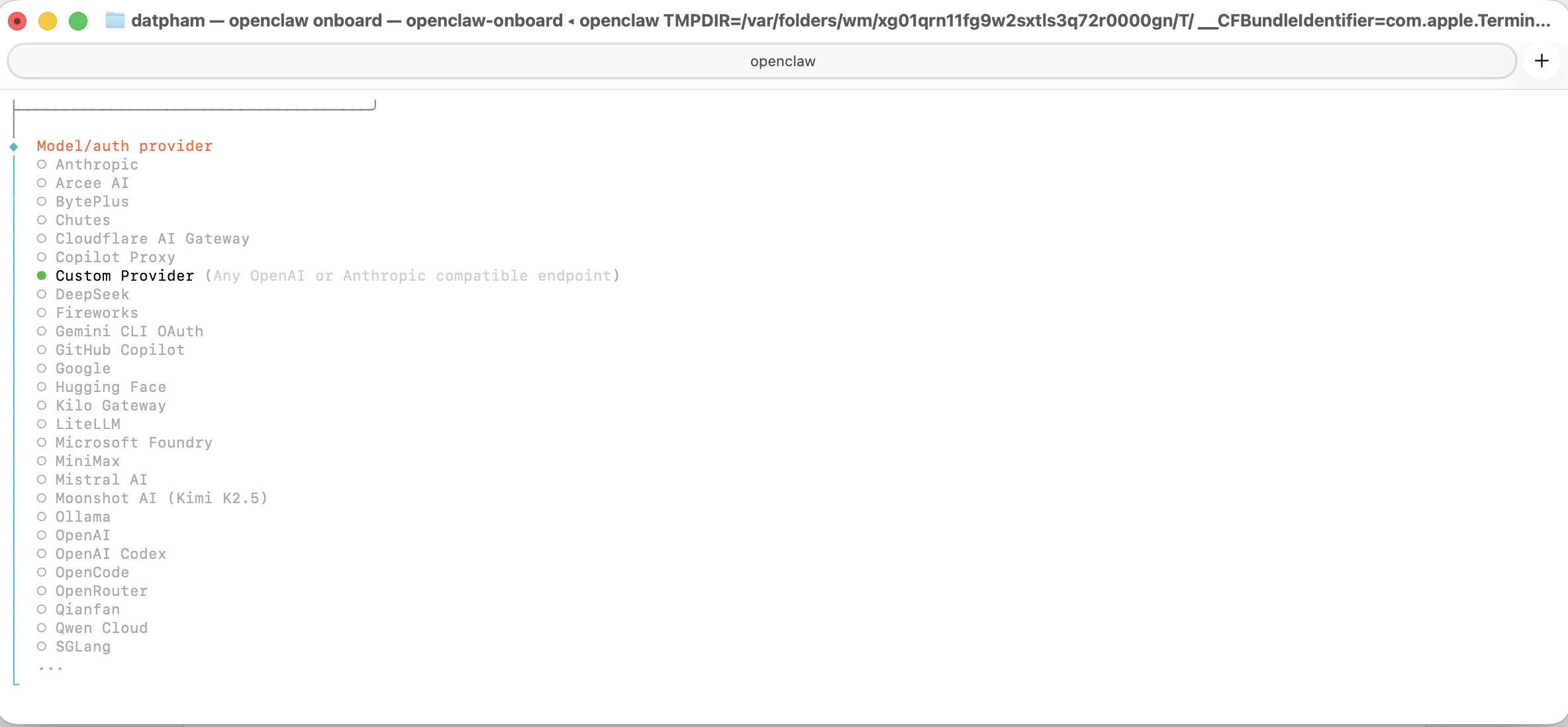
When prompted for **Model/auth provider**, scroll down and select **Custom Provider**.
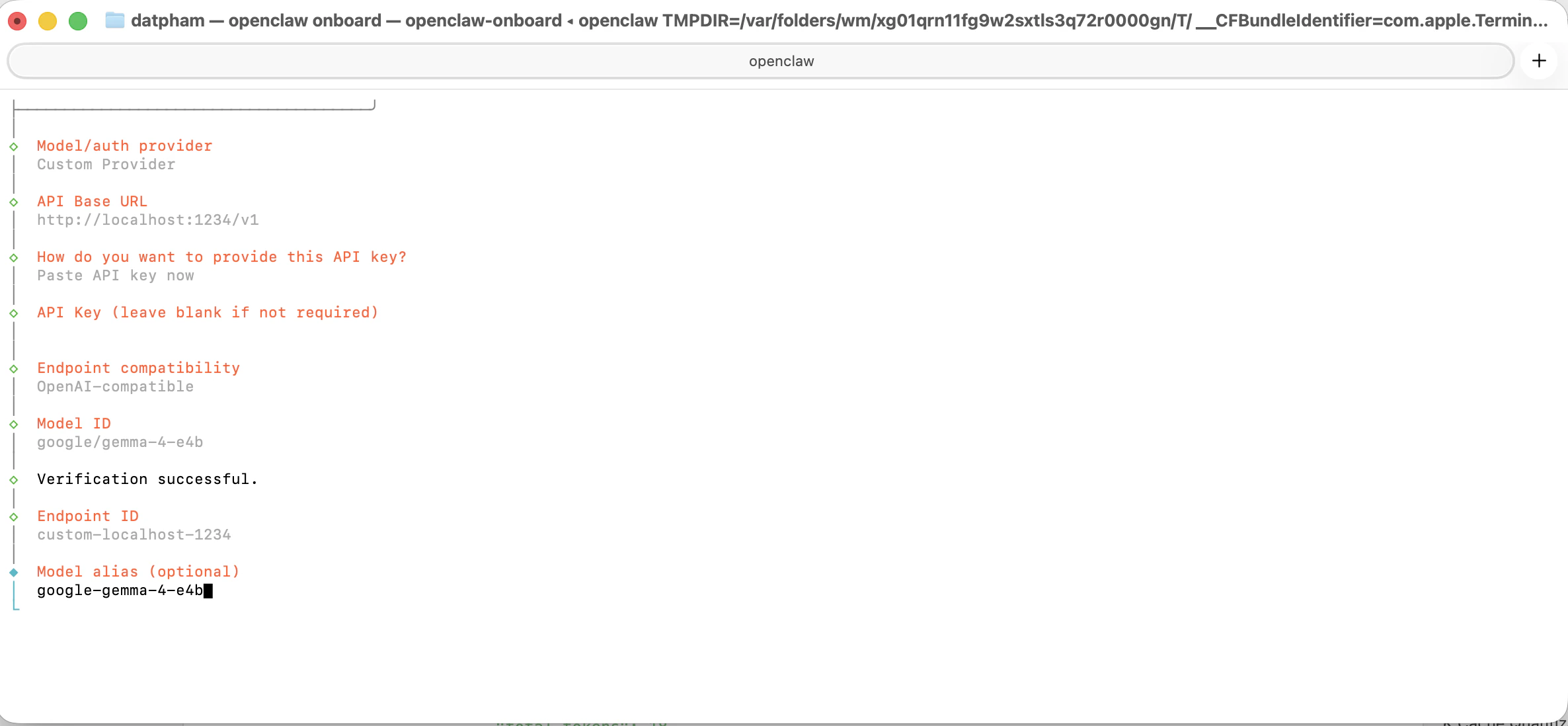
 Fill in the following when prompted:
| Field | Value |
| ---------------------- | -------------------------- |
| API Base URL | `http://localhost:1234/v1` |
| API Key | *(leave blank)* |
| Endpoint compatibility | `OpenAI-compatible` |
| Model ID | `google/gemma-4-e4b` |
| Model alias | `google-gemma-4-e4b` |
The wizard verifies the endpoint and reports **Verification successful**.
Fill in the following when prompted:
| Field | Value |
| ---------------------- | -------------------------- |
| API Base URL | `http://localhost:1234/v1` |
| API Key | *(leave blank)* |
| Endpoint compatibility | `OpenAI-compatible` |
| Model ID | `google/gemma-4-e4b` |
| Model alias | `google-gemma-4-e4b` |
The wizard verifies the endpoint and reports **Verification successful**.
 Launch OpenClaw. It will use `google/gemma-4-e4b` served by LM Studio at `localhost:1234`.
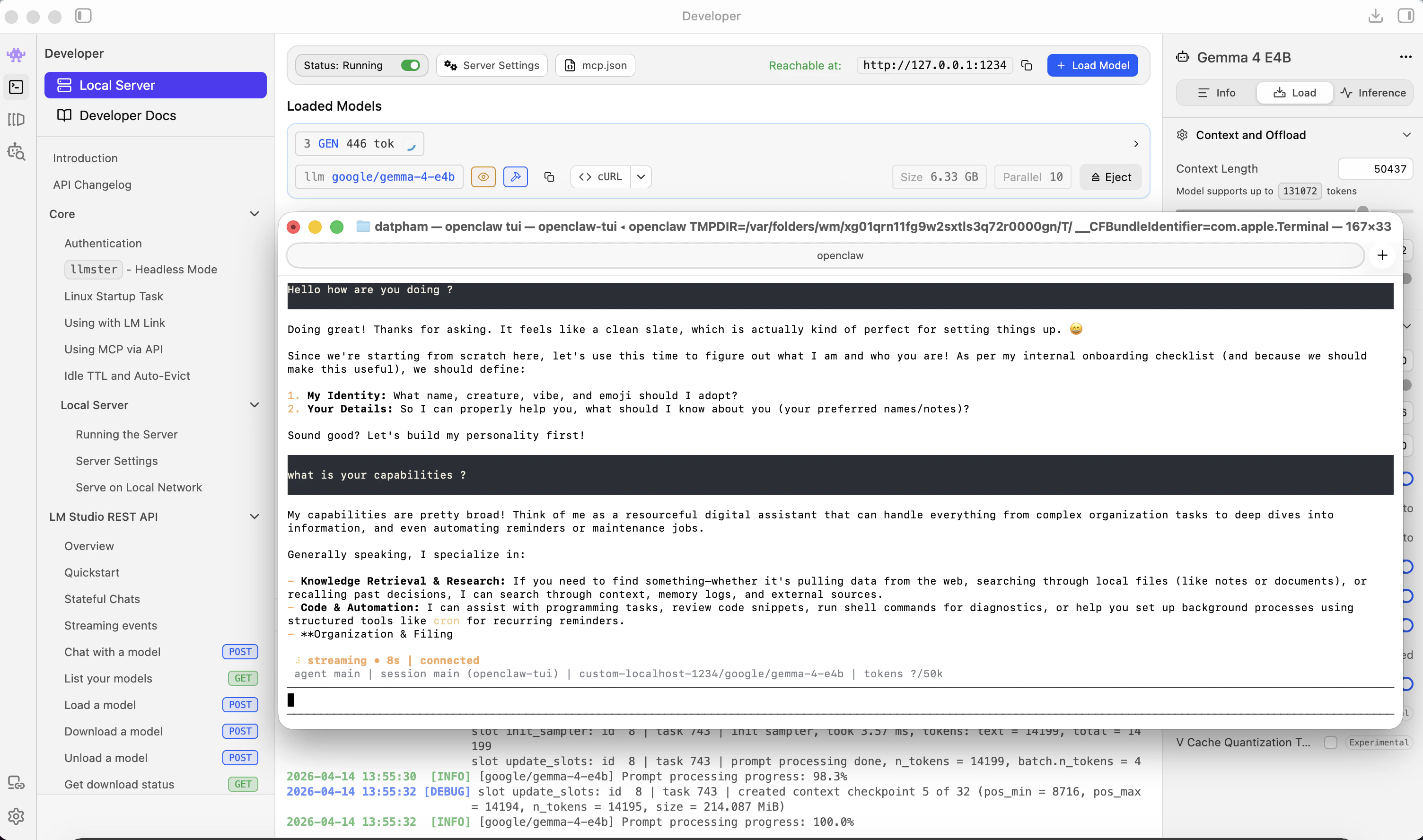 **Context limit** — OpenClaw works normally 50,000 tokens and above. To update this, edit `openclaw.json` manually, then run `openclaw gateway restart` to apply changes.
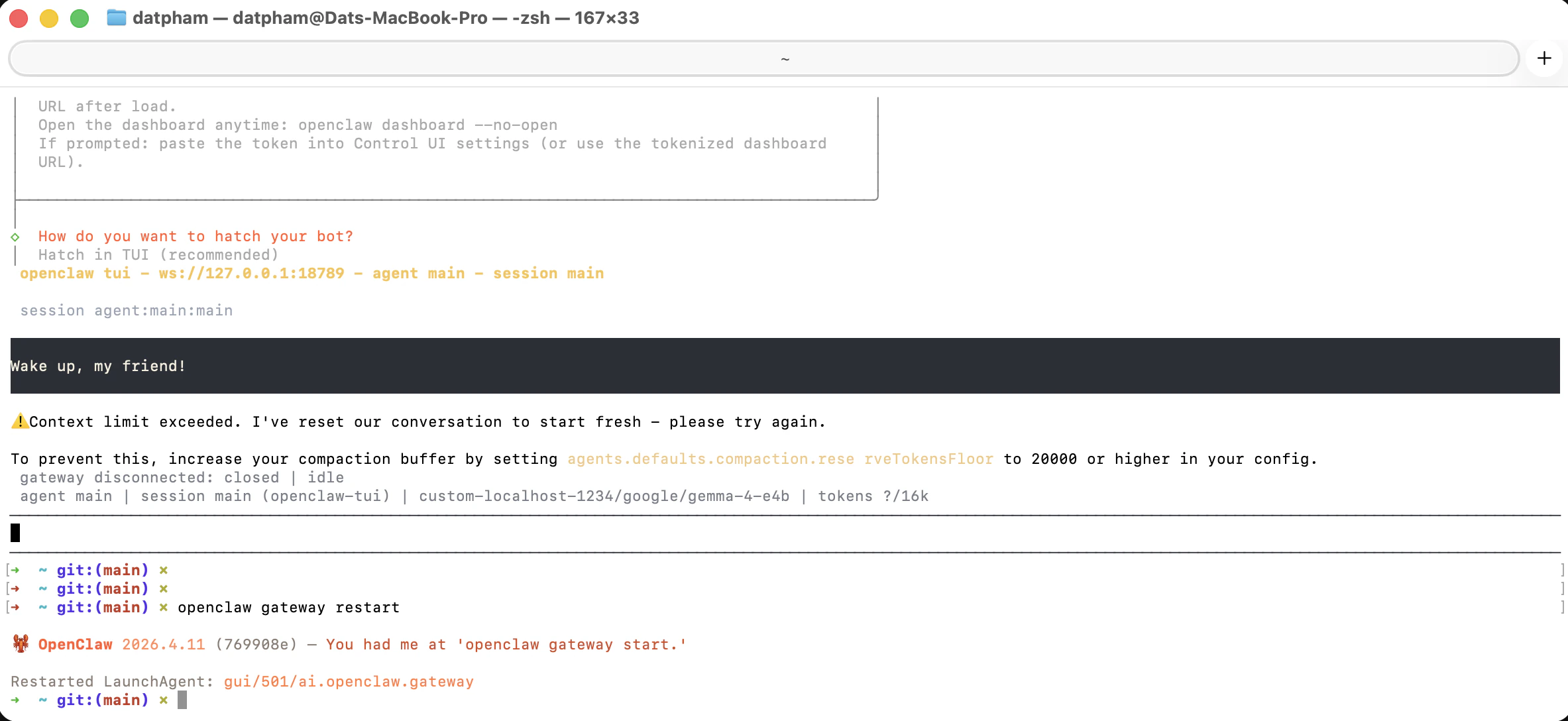 The wizard writes the following into `~/.openclaw/openclaw.json`. You can also add this manually:
```json theme={null}
{
"models": {
"mode": "merge",
"providers": {
"custom-localhost-1234": {
"baseUrl": "http://localhost:1234/v1",
"api": "openai-completions",
"models": [
{
"id": "google/gemma-4-e4b",
"name": "gemma-4-E4B-it (Local)",
"contextWindow": 50000,
"maxTokens": 50000,
"input": ["text"],
"cost": { "input": 0, "output": 0, "cacheRead": 0, "cacheWrite": 0 },
"reasoning": false
}
]
}
}
},
"agents": {
"defaults": {
"model": {
"primary": "custom-localhost-1234/google/gemma-4-e4b"
},
"models": {
"custom-localhost-1234/google/gemma-4-e4b": {
"alias": "google-gemma-4-e4b"
}
}
}
}
}
```
Run the Hermes model setup wizard:
```bash theme={null}
hermes setup model
```
When prompted for the model provider, scroll down and select **Custom Provider (any OpenAI or Anthropic compatible endpoint)**.
The wizard writes the following into `~/.openclaw/openclaw.json`. You can also add this manually:
```json theme={null}
{
"models": {
"mode": "merge",
"providers": {
"custom-localhost-1234": {
"baseUrl": "http://localhost:1234/v1",
"api": "openai-completions",
"models": [
{
"id": "google/gemma-4-e4b",
"name": "gemma-4-E4B-it (Local)",
"contextWindow": 50000,
"maxTokens": 50000,
"input": ["text"],
"cost": { "input": 0, "output": 0, "cacheRead": 0, "cacheWrite": 0 },
"reasoning": false
}
]
}
}
},
"agents": {
"defaults": {
"model": {
"primary": "custom-localhost-1234/google/gemma-4-e4b"
},
"models": {
"custom-localhost-1234/google/gemma-4-e4b": {
"alias": "google-gemma-4-e4b"
}
}
}
}
}
```
Run the Hermes model setup wizard:
```bash theme={null}
hermes setup model
```
When prompted for the model provider, scroll down and select **Custom Provider (any OpenAI or Anthropic compatible endpoint)**.
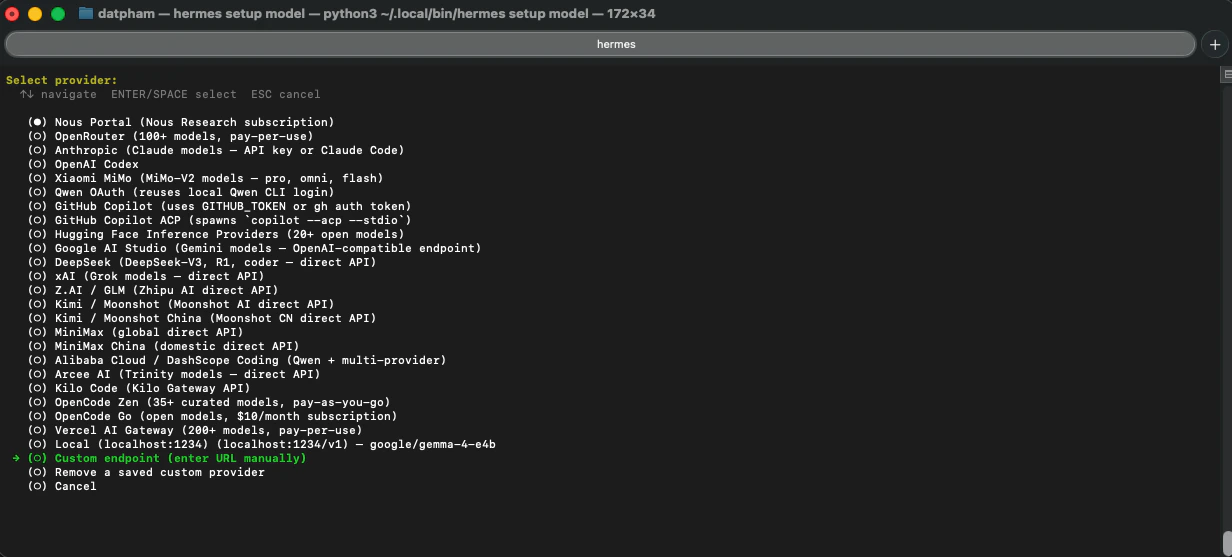 Fill in the following when prompted:
| Field | Value |
| ---------------------- | -------------------------- |
| API Base URL | `http://localhost:1234/v1` |
| API Key | *(leave blank)* |
| Endpoint compatibility | `OpenAI-compatible` |
| Model ID | `google/gemma-4-e4b` |
Fill in the following when prompted:
| Field | Value |
| ---------------------- | -------------------------- |
| API Base URL | `http://localhost:1234/v1` |
| API Key | *(leave blank)* |
| Endpoint compatibility | `OpenAI-compatible` |
| Model ID | `google/gemma-4-e4b` |
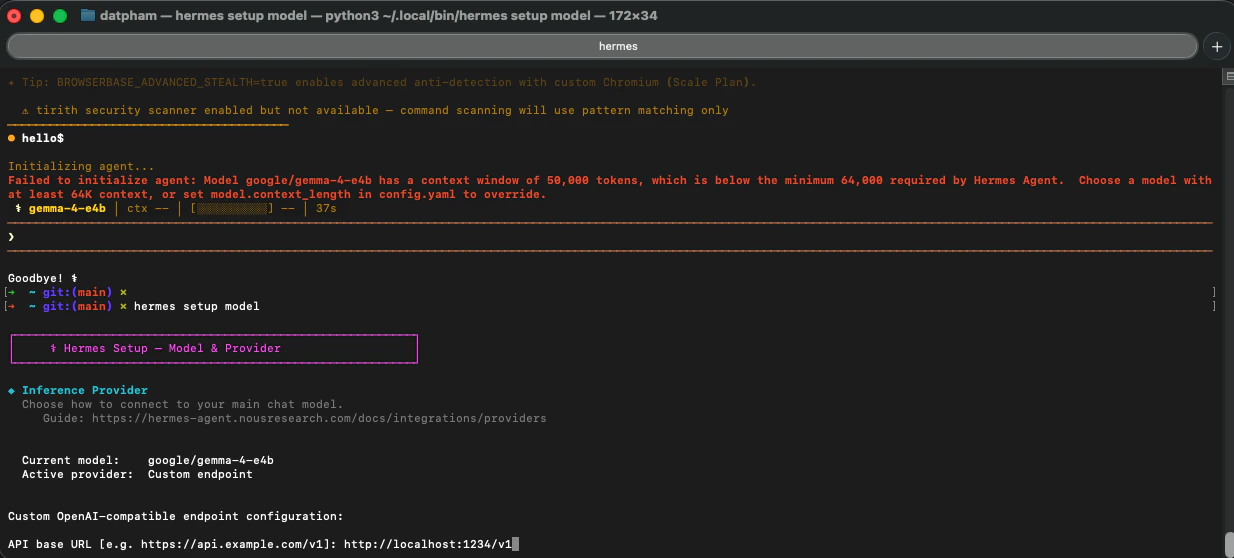 The wizard confirms the endpoint and model are configured.
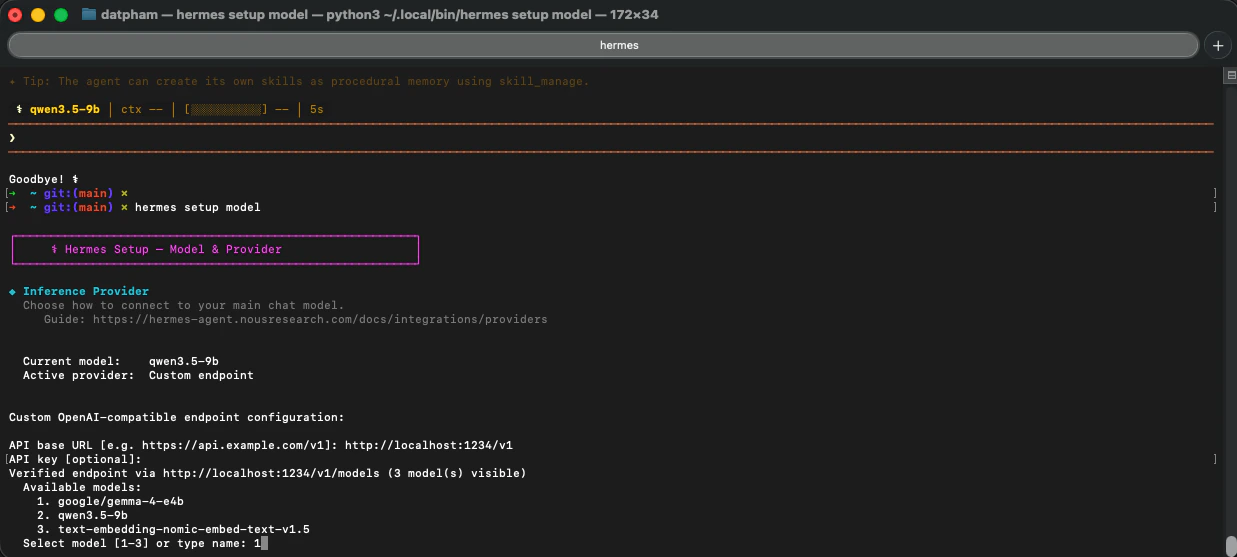 Hermes will prompt you to set the context length. Set it to match the model's context window (`65000` tokens for Gemma 4 E4B because hermes agent required minimum 64000 tokens).
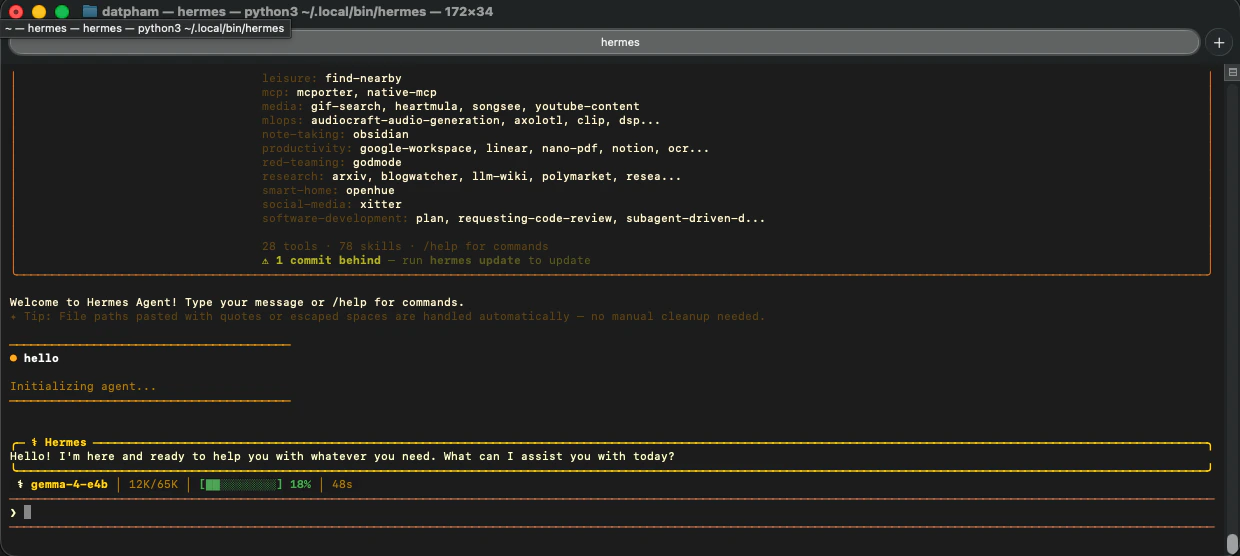
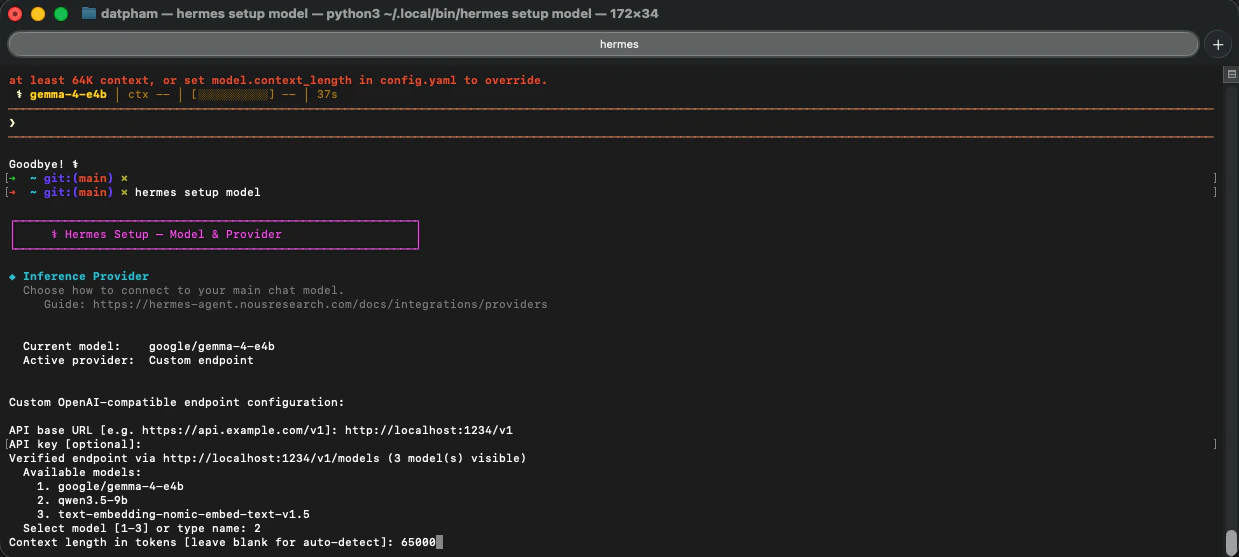 Launch Hermes. It will use `google/gemma-4-e4b` served by LM Studio at `localhost:1234`.
 ## Step 4 — Configure ByteRover CLI
Connect ByteRover to the same local endpoint and select the Qwen model.
In the ByteRover TUI, type `/providers` and press Enter.
## Step 4 — Configure ByteRover CLI
Connect ByteRover to the same local endpoint and select the Qwen model.
In the ByteRover TUI, type `/providers` and press Enter.
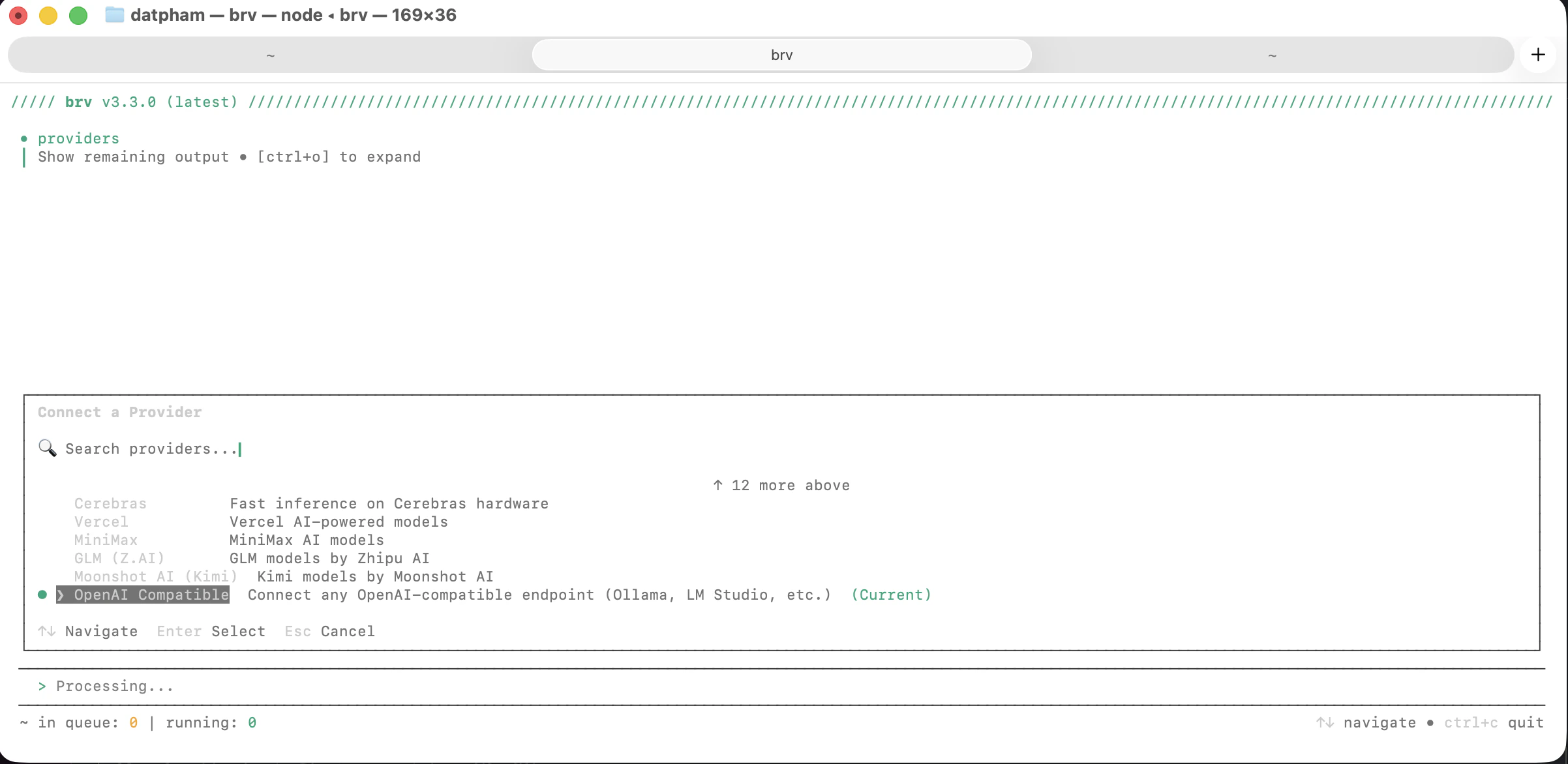
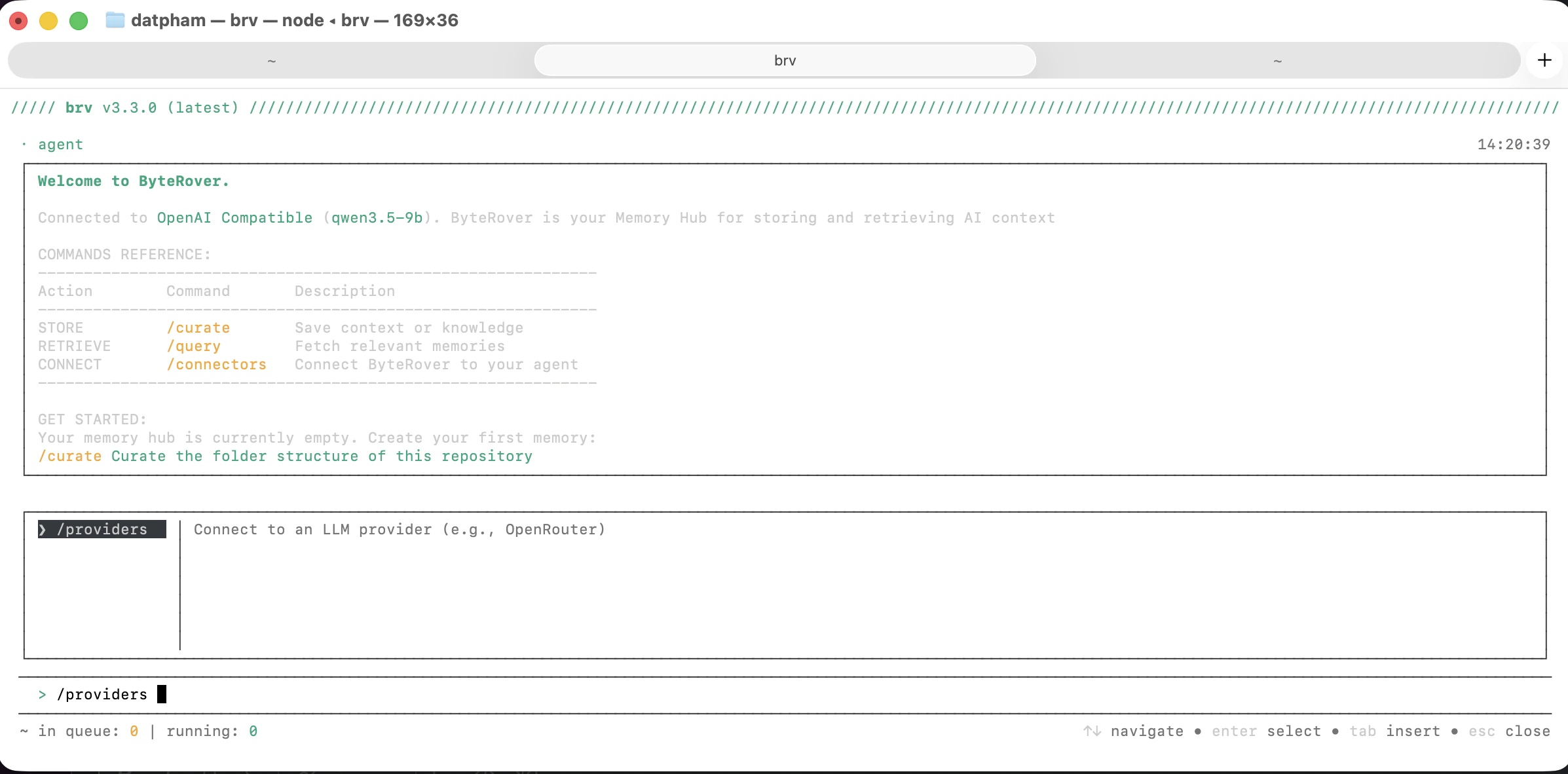 Scroll to **OpenAI Compatible** and press Enter. This covers LM Studio, Ollama, and any other OpenAI-compatible local server.
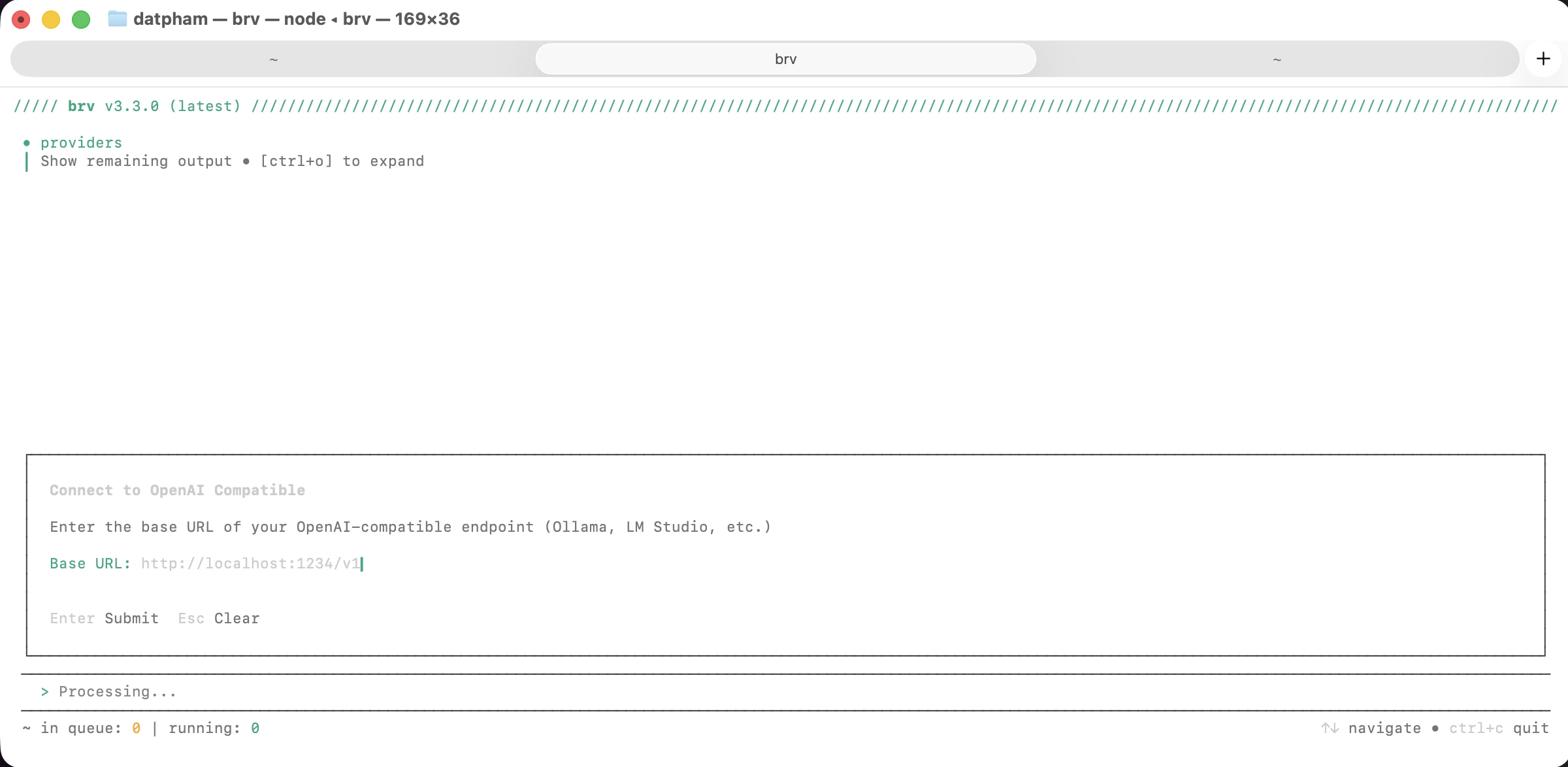
 When prompted, enter `http://localhost:1234/v1` and press Enter. Leave the API key blank.
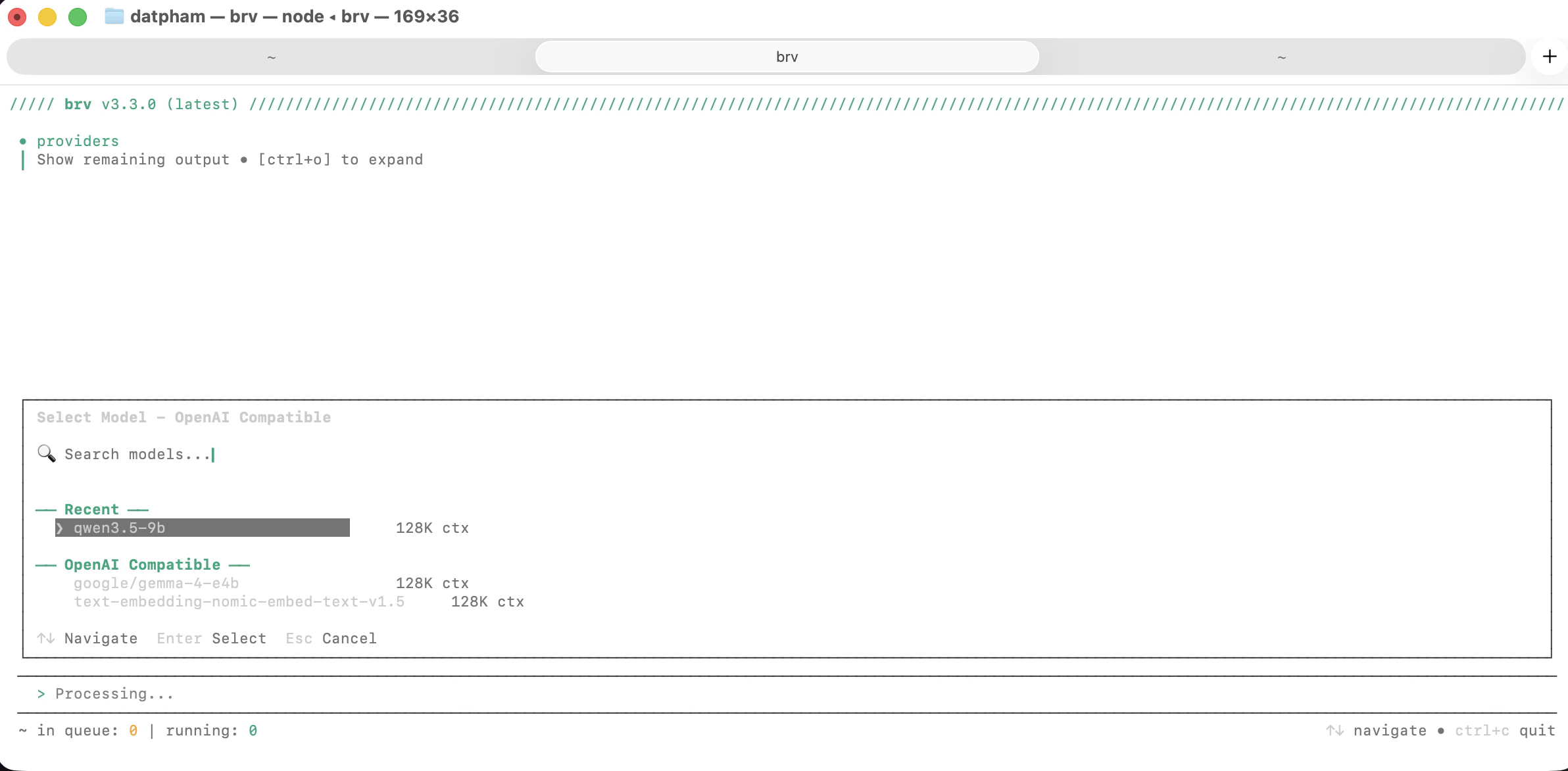
 From the model list, select `qwen3.5-9b` (128K ctx).
 ```bash theme={null}
brv providers connect openai-compatible --base-url http://localhost:1234/v1
```
```bash theme={null}
brv model switch qwen3.5-9b
```
## Step 5 — Verify ByteRover Is Working
Run a quick curate command to confirm ByteRover is using the local Qwen model.
```
/curate "caching algorithm list: lru, lfu, fifo"
```
```bash theme={null}
brv providers connect openai-compatible --base-url http://localhost:1234/v1
```
```bash theme={null}
brv model switch qwen3.5-9b
```
## Step 5 — Verify ByteRover Is Working
Run a quick curate command to confirm ByteRover is using the local Qwen model.
```
/curate "caching algorithm list: lru, lfu, fifo"
```
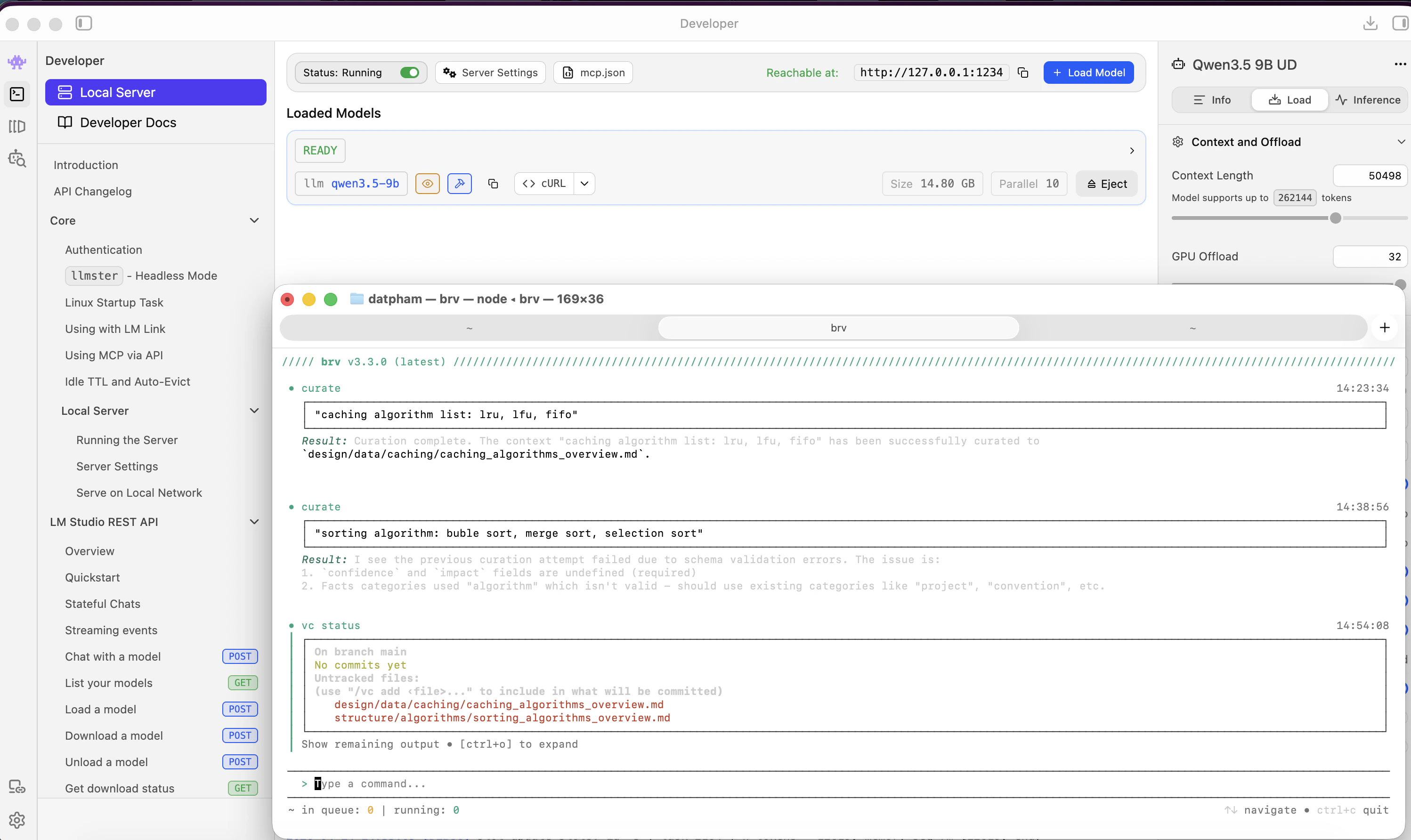
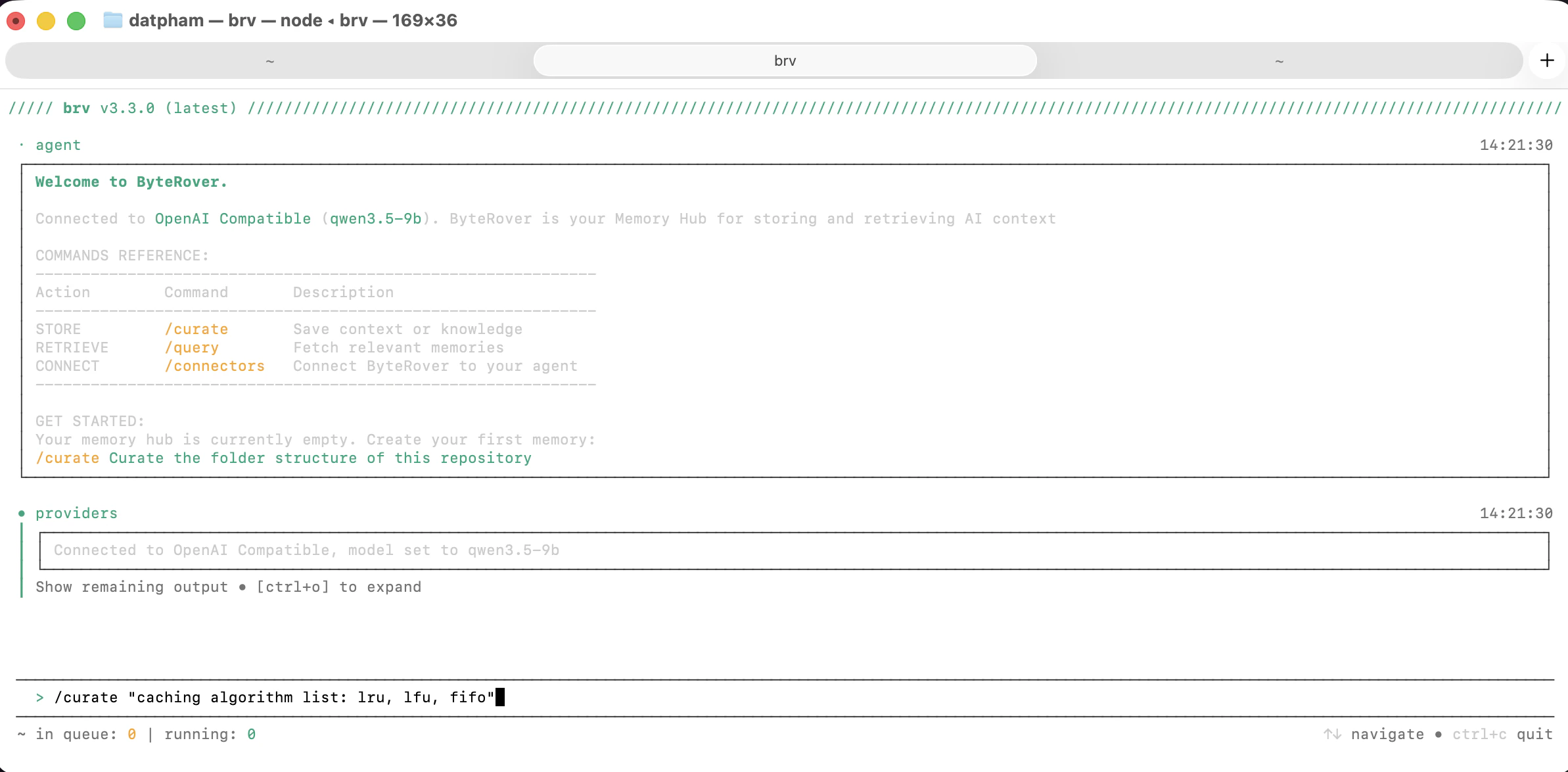 ByteRover sends the request to Qwen3.5-9B on LM Studio. You can watch the LM Studio Developer tab update in real time.
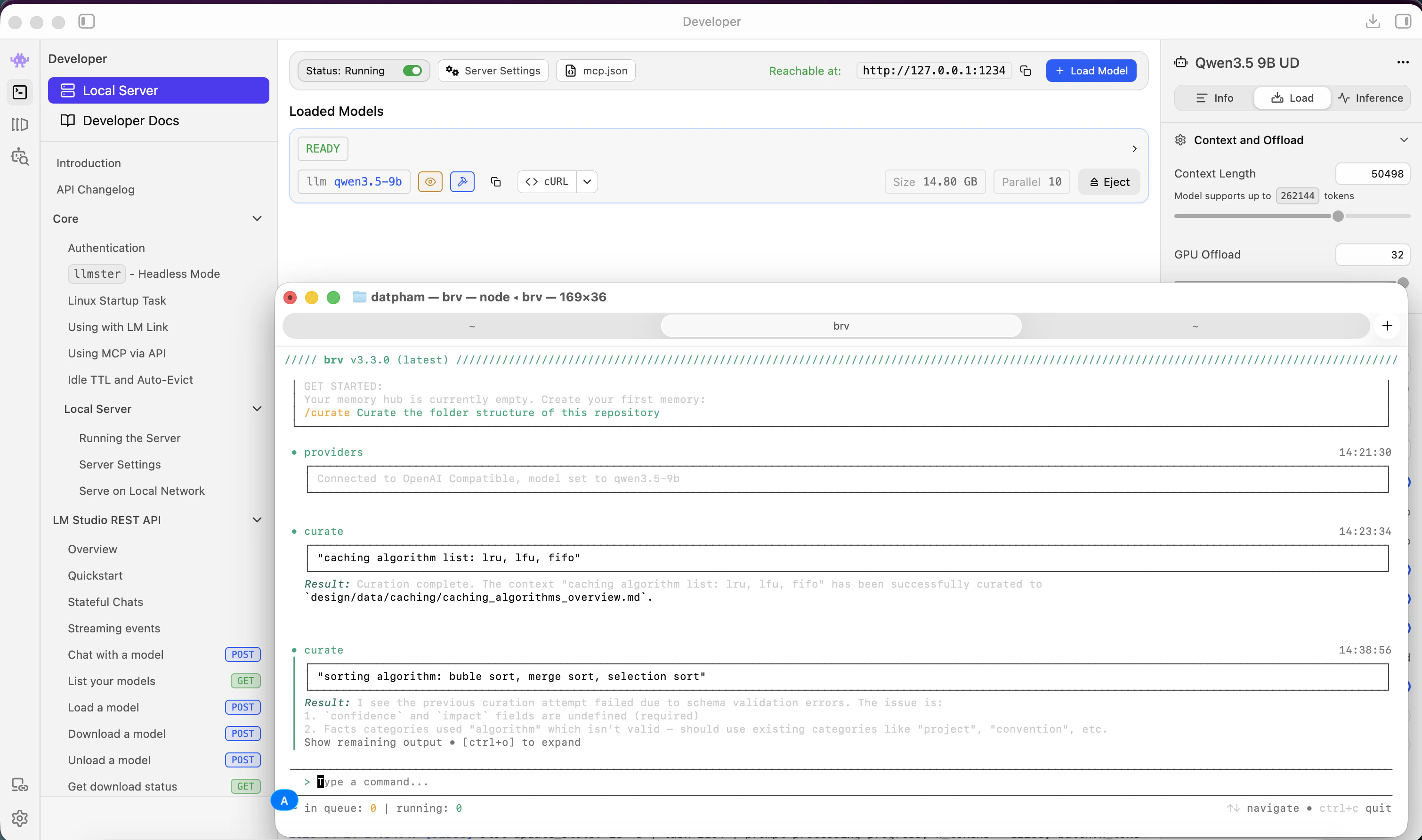 ByteRover returns structured knowledge extracted from the curate request.
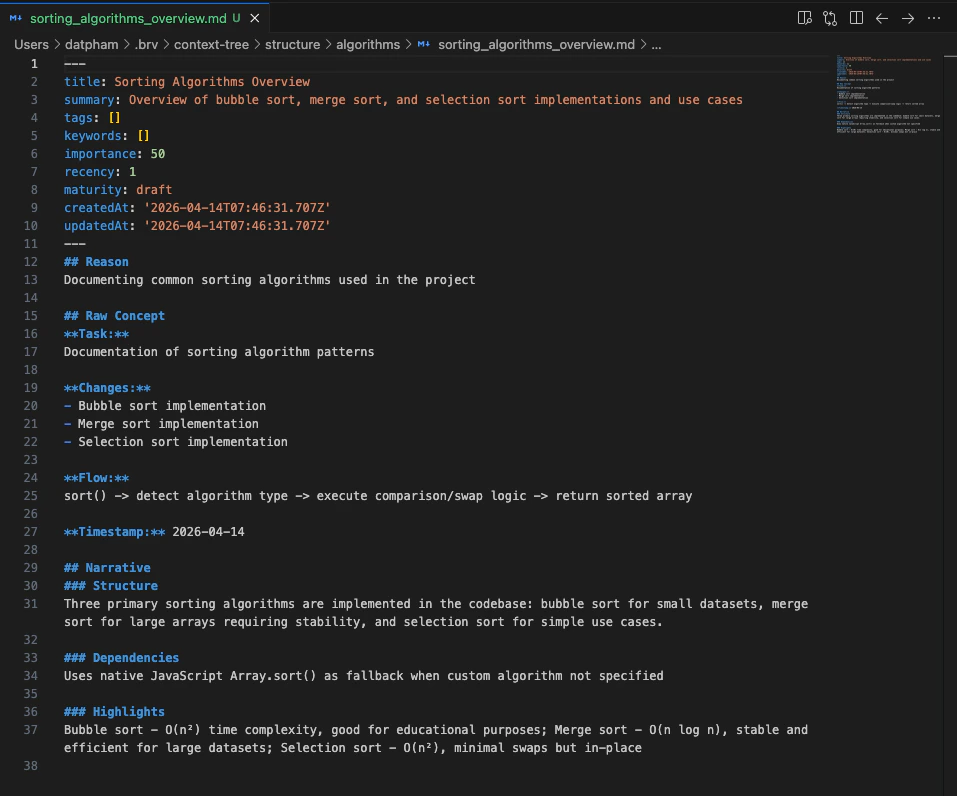
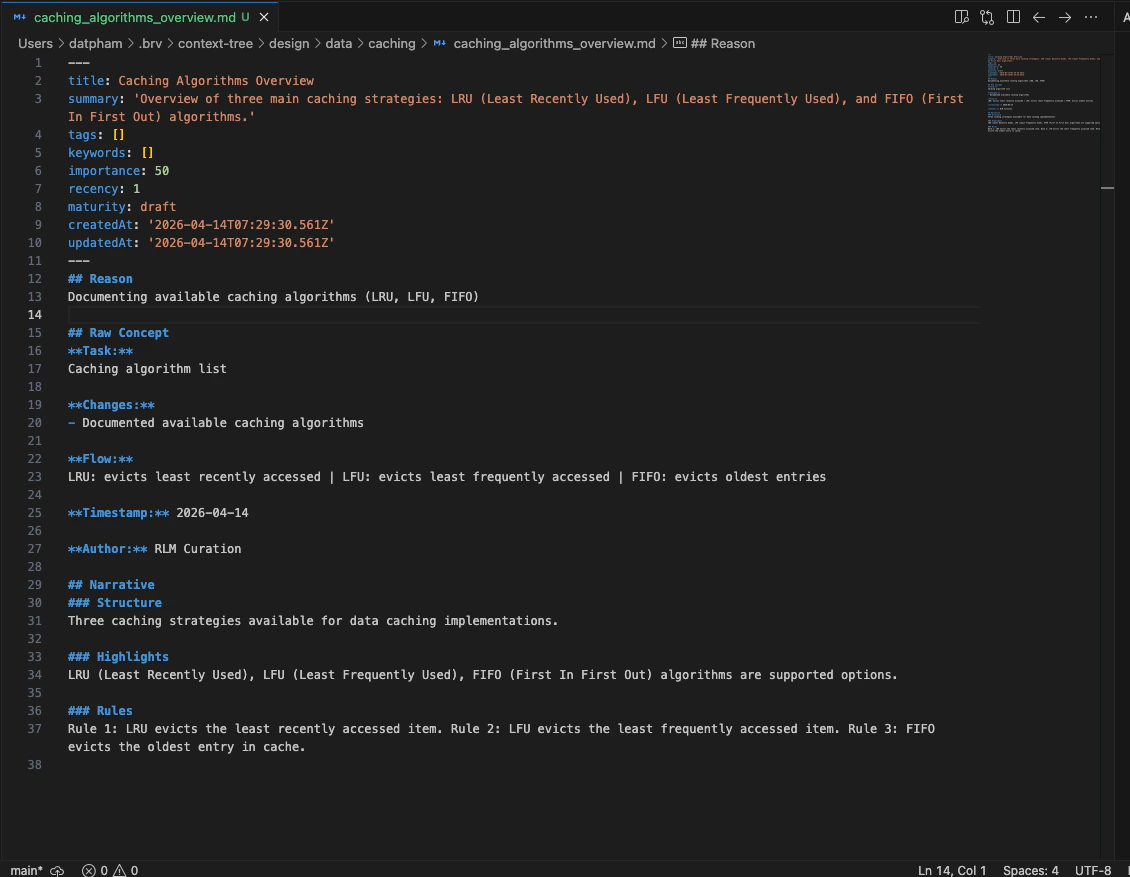 The context tree is updated with new memory files you can inspect directly.
 ## Step 6 — Enable ByteRover Memory Integration
Connect your agent to ByteRover for persistent memory across sessions.
Configure ByteRover as the context engine for OpenClaw
Configure ByteRover as the memory provider for Hermes
## Reference
Connect an external provider or use the built-in LLM
Learn how to seed your context tree with existing knowledge
Configuration details, troubleshooting, and advanced topics
Exploring local & cloud options
## Step 6 — Enable ByteRover Memory Integration
Connect your agent to ByteRover for persistent memory across sessions.
Configure ByteRover as the context engine for OpenClaw
Configure ByteRover as the memory provider for Hermes
## Reference
Connect an external provider or use the built-in LLM
Learn how to seed your context tree with existing knowledge
Configuration details, troubleshooting, and advanced topics
Exploring local & cloud options